By Audrey Gerred
Fabric, Fabric, Fabric… unless you are living under a rock, you have undoubtedly heard a ton of news about Microsoft unveiling Fabric in Power BI. Fabric (still in preview) is an end-to-end analytics product that brings together the best of Power BI, Azure Data Factory, and Azure Synapse into a unified lake-centric SaaS platform. Such big changes can be overwhelming, and you may be wondering where to start or if/how you can test it out and get more comfortable with it. Fear not! Today, we’ll just dive on in and get you some access to start your learning journey!
Microsoft has several tutorials that allow you to jump in and start hands-on learning. They have both multi-experience and experience-specific tutorials. The most important piece of the puzzle when starting one of these tutorials is having a tenant with Fabric enabled. You may have access through your organization, but if you don’t, you can sign up for a Microsoft 365 Developer Account. With the Microsoft 365 Developer Program you will get access to a sandbox and a free, renewable 90-day Microsoft 365 E5 developer subscription which is pre-provisioned with M365 apps.
To sign up for an M365 Developer Account, you will need a personal Microsoft Account (i.e. @outlook.com or @hotmail.com) which you can easily set up here, if you don’t already have one.
Once you have your personal Microsoft account set up, you will need to set up your M365 Developer Account, which you can do here (I suggest using an InPrivate window), then clicking the ‘Join Now’ button.
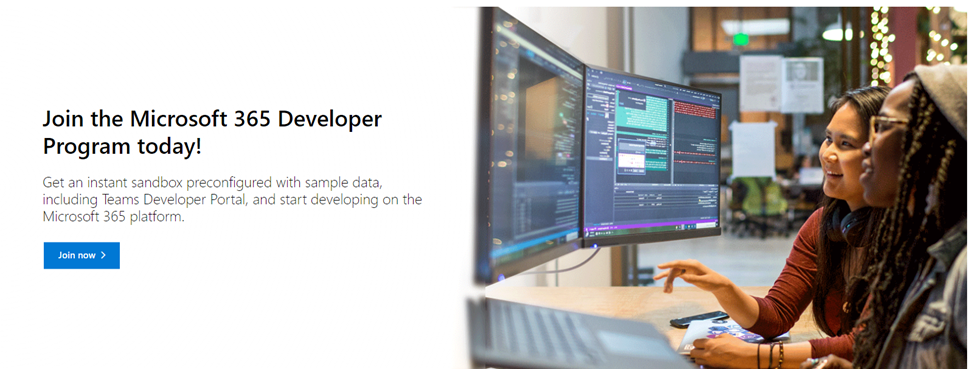
When you see the below screen fill in the Country/Region, Company (enter your own name if you are not using this on behalf of your organization), language preference, accept the terms and conditions, then click Next.

Select Personal projects, then click Next.

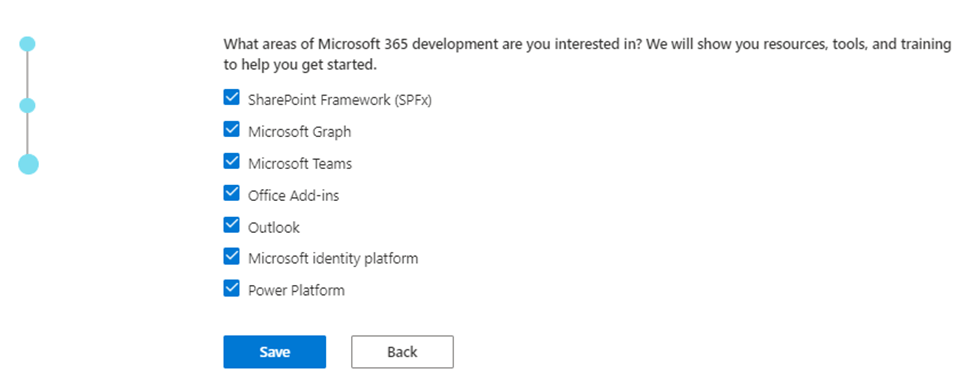
Select which areas you are interested in, then click Save.
Select Configurable sandbox, then click Next.

Create a username, domain, and password, then click Continue.

Enter your phone number, then click Send Code.

Once you get the code you can enter it, then click Set up and you will be taken to a screen that shows how many days you have left and other information.
Now, swing on over to Power BI Service and login using the credentials for your Developer Account (in my example it was powerbiwithme@powerbiwithme.onmicrosoft.com). Power BI should appear as it always does… for now.
Click the settings icon in the upper right-hand of your screen.

Select Admin portal, then in Tenant settings, go to Microsoft Fabric (Preview), enable, and apply.
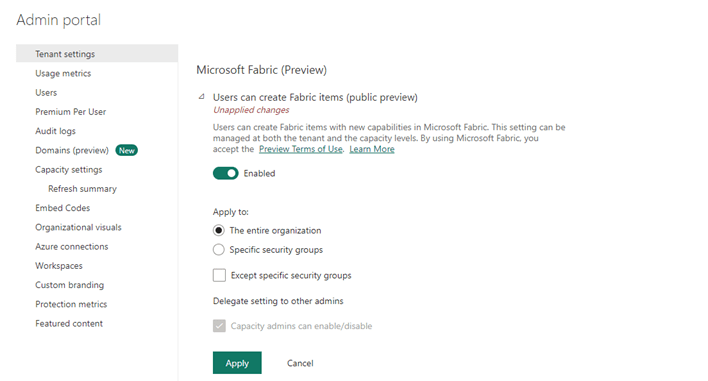
It will take about 15 minutes for the changes to take effect. Once they do, you will notice a Power BI icon in the lower left-hand side of your screen. If you click on it, you will see additional options available to you because of Fabric being enabled in the tenant.

When you need to create a Fabric Capacity Workspace, select Trial under the Advanced options.

Viola! Now, that you have enabled Fabric you can start utilizing the Microsoft tutorials! Happy learning!
 Power BI with Me
One response to “Getting Started with Fabric Edition”
[…] my previous blog post I covered how you can get a free trial version of Fabric through a Microsoft Developer Account so […]
LikeLike