• About Me
    • Power BI with Me Blog

Power BI with Me

  • The Field Parameter Edition

    August 4th, 2023

    By Audrey Gerred

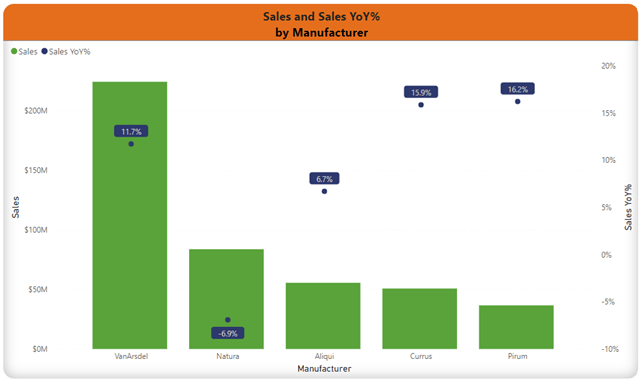
    Picture it… it’s any day between July 15, 2015, and March 25, 2022, a day like any other day, and you make a report page that displays Sales and Sales YoY% by Manufacturer (because that’s what you were asked to do), and everyone loves it.

    In fact, people like being able to access this information so quickly and easily (one might even say, right at their fingertips anytime of the day or night that they want to look at it) that they start to ask you to show them Sales and Sales YoY % by Category, by Product, by Segment, by Manufacturer and Category, by Segment and Product (and every and any other variation that someone wants and asks for.

    The next thing you know, your report has a ton of visuals crammed onto one page, tons of pages that people have to scroll through and (try to) find which combination of variables they want to see the data by, a table of contents with links, and/or bookmarks, drill-throughs (which still have a pre-defined order), separate reports, and don’t even get me started on SWITCH() statements… all in an effort to accommodate the needs of the end consumers (without them having to create their own ad-hoc reports). If the reports aren’t answering the questions that they need answered in order to make their decisions, what’s the point of them?

    If you are anything like me, you love when report-users love the access to insights that well-designed Power BI models and reports provide, and they engage and make suggestions for new visualizations and continuous development. But I didn’t love the above-mentioned options for making the process cleaner/faster for different slices of metrics (for the report-user and their experience with the report and for my team’s time maintaining so many pages, bookmarks, links, drill-through, etc.). I wanted the end-user to have more options over controlling how they sliced and diced the measures.

    If you’re still doing things any of the previous mentioned ways of giving report-users ‘options’ on how they get to see the slices of data, there is a much better option, and it is very report-user friendly. Drumroll, please… Field Parameters (applause, crowd hoots and hollers… for me finally just getting to the point)!

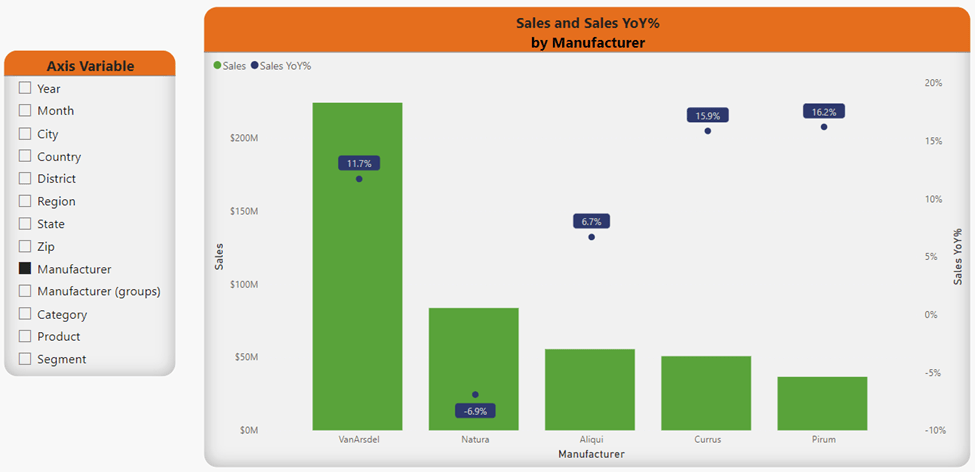
    Thanks to Field Parameters, report-users can dynamically change how the visualizations on a page/report/individual visualization are sliced. Remember all the different visualizations we discussed had to be made before? Check it out now…

    In this example, the report-user would make a selection (or multiple selections) from the Axis Variable slicer on the left-hand side of the canvas. If the report-user would like to see the data at multiple levels in a hierarchy, they simply have to hold Ctrl on their keyboard, click the variables in the order they want them to appear in the visual, then click on the ‘Expand all down one level in the hierarchy’ icon* that appears when they hover on the visual they want to expand.

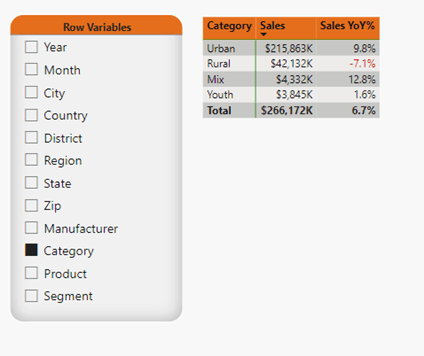
    The next example utilizes the slicer with Field Parameters (named Row Variables), a matrix, and items filtered in the filter pane. The report user decides they initially want to see data for USA and 2021 utilizing the (Filter Pane filter) and slice the data by Category and Segment utilizing the Row Variables slicer.

    The report-user can then decide what they would like to dig into further, and simply apply more filters and select the new Row Variables. Viola! Simple!!

    I promise, it’s super simple to set-up and update. Just shoot over to Microsoft Learn for detailed instructions! But wait, there’s more! Come back for the next edition where I’ll cover utilizing Tabular Editor 2 to create a calculation group that will allow you to create a slicer to enable the report-user to choose which measures they see in the visuals – giving them even greater opportunities to interact with the data and get actionable insights!

  • The Custom Date Table Edition

    August 1st, 2023

    By Audrey Gerred

    Fun Fact… I used to be intimidated by creating a well-defined custom Date table in Power BI, heck, I used to be intimidated about creating a date table period. The default Date tables were getting the job done (for the most part), so it’s definitely possible (i.e. totally happened) that years ago, my early models didn’t have a date table, just date fields and the default Date tables that came with them.

    Thankfully, those days are long behind me! Did I figure out how to craft a beautifully designed, written, formatted, well-defined date table that accommodates a Gregorian Calendar, Fiscal Calendal, and/or Fiscal Weekly Calendar all in one, has practically every dimension on a date that you could want, makes time-intelligence measures an absolute walk in the park at so many levels of granularity, and can easily be enhanced if needed, then generously share it out for the world to use? No! I definitely did not do that!! But, have no fear! Marco Russo over at SQLBI does have such a wonderous unicorn! Seriously, SCORE! I legitimately LOVE this Reference Date Table.

    Yes, I will die on that hill, but I doubt I will have to! Read the article, download the file, get familiar with it… I promise you will love it (and, if you are anything like me, you will not only stop dreading or foregoing the custom Date table, you truly appreciate the versatility it gives to your modeling and visualizations that you will be inspired to blog about it!).

    If you didn’t know about custom Date tables, didn’t know why custom date tables are so versatile in Power BI, didn’t care about custom Date tables, you think I’m going a little over-board about a custom Date table (especially when Power BI does work behind-the-scenes on fields it recognizes as a date field and creates default Date tables which can easily be used for time intelligence) and you want to see what made me such a big advocate of using custom Date tables as a best practice, or didn’t know about this specific custom Date table… come on and Power BI with Me!

    Time-Intelligence metrics are often used as KPIs and it’s important to ensure you can do the measures that are needed… sometimes you need to account for a 4-4-5 calendar utilizing fiscal weeks, maybe your business week runs Wednesday to Tuesday, you want to analyze work done on holidays, you follow a fiscal calendar, or any other number of scenarios and levels of granularity you may want to look at are handled with ease with this custom Date table. With a custom Date table, you can have access to many dimensions at your finger-tips to quickly filter on or utilize in a measure.

    By default, when Power BI recognizes a field as a date, it creates the default Date table in the background… it does this for every date field that exists in your model. Adding a custom Date table does not automatically turn the default tables off, so you will have to right click on the custom Date table and mark it as the Date table. Doing this will disable the default tables so memory is not being wasted on them. If you are not utilizing a custom Date table marked as a Date table, you should remove any date field you are not going to be utilizing to minimize on the hidden tables in the background.

    That’s it… it’s as easy as heading to SQLBI and integrating this work of art into your modeling. Thank you, SQLBI!

  • The Star Schema Edition

    July 30th, 2023

    By Audrey Gerred

    To say that it is an exciting time in the world of a self-professed and self-declared Power BI enthusiast and nerd, would be an understatement. Fabric, and datasets coming to mobile apps, and Edit your data models in Power BI service (preview)… OH MY! And, I almost hate to be the one to say it, but, I want to take a pause and stress the importance of fundamentals while we absorb all the updates to come. The bright and shiny new bells and whistles are so tempting, but we must remember the basics, especially with our modeling! Today, let’s look at one essential way (at a high level) to help ensure your model is running at optimal performance – Star Schema (with an occasional Snowflake dimension).

    Why Star Schema?

    In a Star Schema model, tables will be classified as Fact or Dimension. In the simplest of terms, it optimizes your model for performance and useability. One of your modeling goals is to design a model with tables for summarizing and tables for grouping and filtering. This normalization of the model reduces repetitious data and helps to manage model size.

    Fact table(s)

    • Transactional or event type data – think along the lines of sales orders, stock rates, temperature, weather events, etc.
    • These tables contain key columns (unique identifiers) that relate to dimension tables
    • These tables support summarization

    Dimension table(s)

    • Descriptive data – describes business entities – think along the lines of product, people, location, etc. information
    • These tables contain the key column along with description fields related to the key
    • These tables support filtering and grouping

    In general, Fact tables have many rows, continue to grow over time, and need to be refreshed more frequently while Dimension tables contain a relatively small number of rows and the data does not change as often as Fact table data. When designing your model, avoid mixing dimension and fact tables together to create one large table (i.e. other than the key, if a field is part of a Dimension table, it should not be included in a Fact table). Mixing the tables together to form one table is known as denormalization and increases repetitious data.

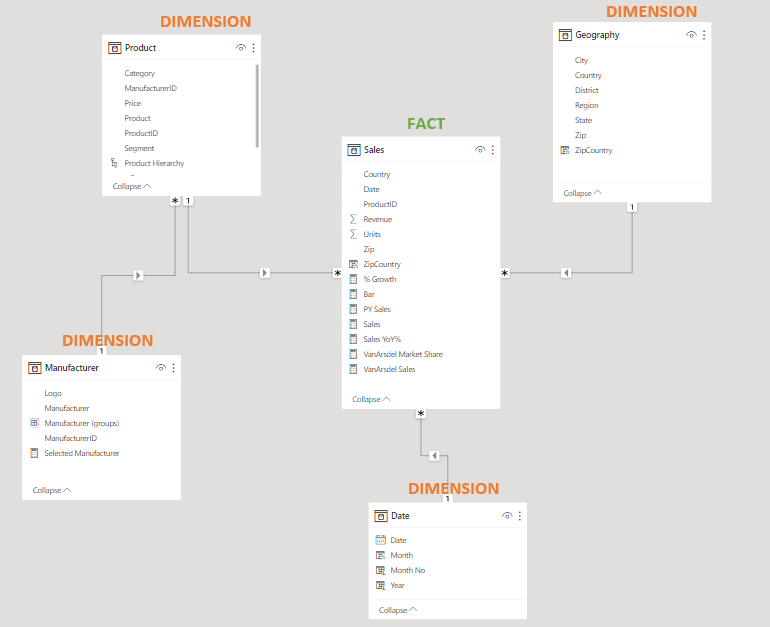
    In the below example, the Fact table has a Many to one (*:1) relationship with each Dimension table through the key. From the Date Dimension table we can build visuals and filters that allow the end user to consume and slice date by variables such as name of the month, quarter of the year, week of the year, day of the week, etc.  The join between Sales and Geography (based on Zip Code) allows for the filtering and grouping by many dimensions such as city, state, county, etc. Anything that can or should describe the key belongs in the dimension table related to said key.

    No alt text provided for this image

    Next Steps?

    If you haven’t already, follow to stay updated on new content and try out Star Schema… go for it… normalize those models! 

←Previous Page
1 2 3 4

Blog at WordPress.com.


Loading Comments...
 

    • Subscribe Subscribed
      • Power BI with Me
      • Already have a WordPress.com account? Log in now.
      • Power BI with Me
      • Subscribe Subscribed
      • Sign up
      • Log in
      • Report this content
      • View site in Reader
      • Manage subscriptions
      • Collapse this bar